



One workspace, every client separate
Your team works in one workspace; each client is an organization with its own layers, projects, logo and members.
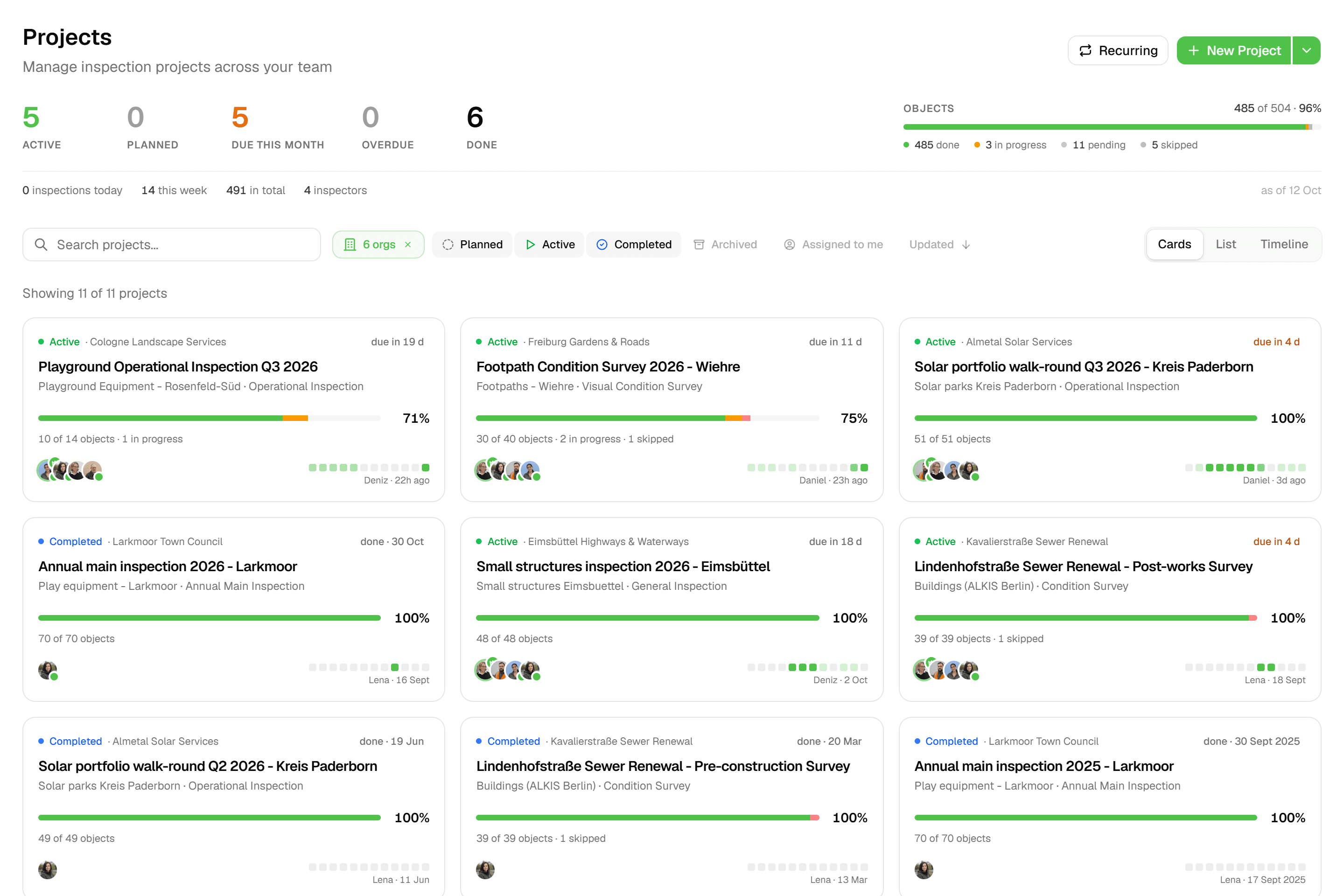
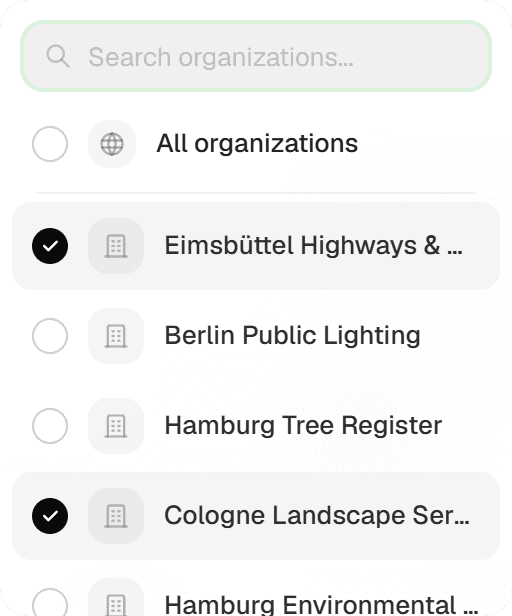
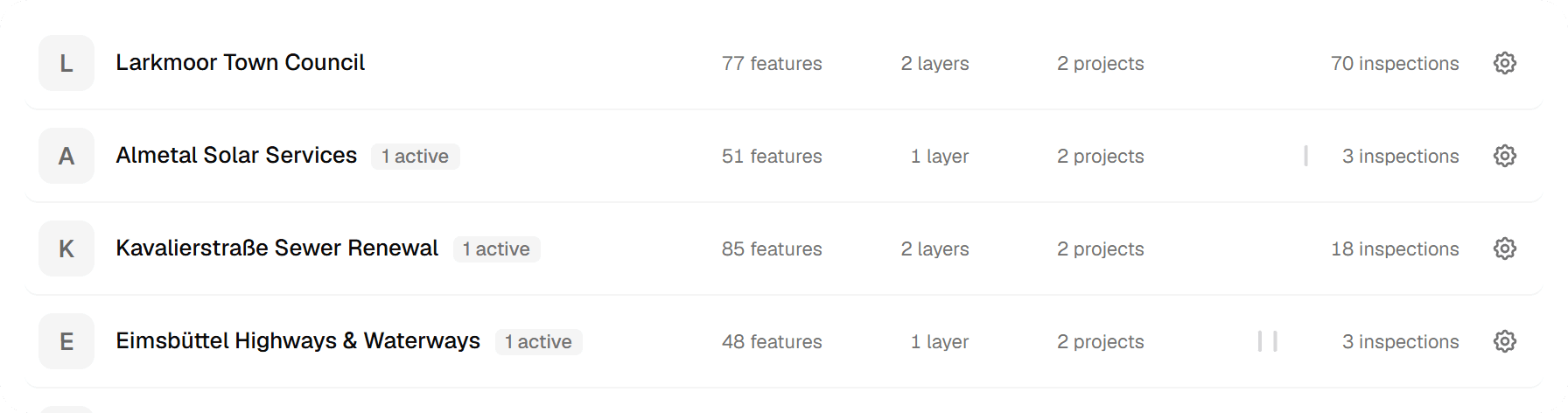
Contractors and consultants serve many clients at once, and Geocadra is organised that way. Your workspace holds an organization per client (a municipality, a network operator, a housing corporation), each with its own layers, projects and logo. Forms, project types and map services are set up once at workspace level and used across clients; client contacts are invited into their own organization and see nothing else.
The problem
One tool per client, or one pile for everyone
Serving several clients usually means a folder per client, a login per client, and a spreadsheet that remembers which is which. Put everything in one account instead and every map, export and report has to be filtered by hand; sooner or later the wrong dataset lands in the wrong client's inbox. Letting a client look at their own data means a screenshot, or yet another account to manage.
The solution
Organizations inside your workspace
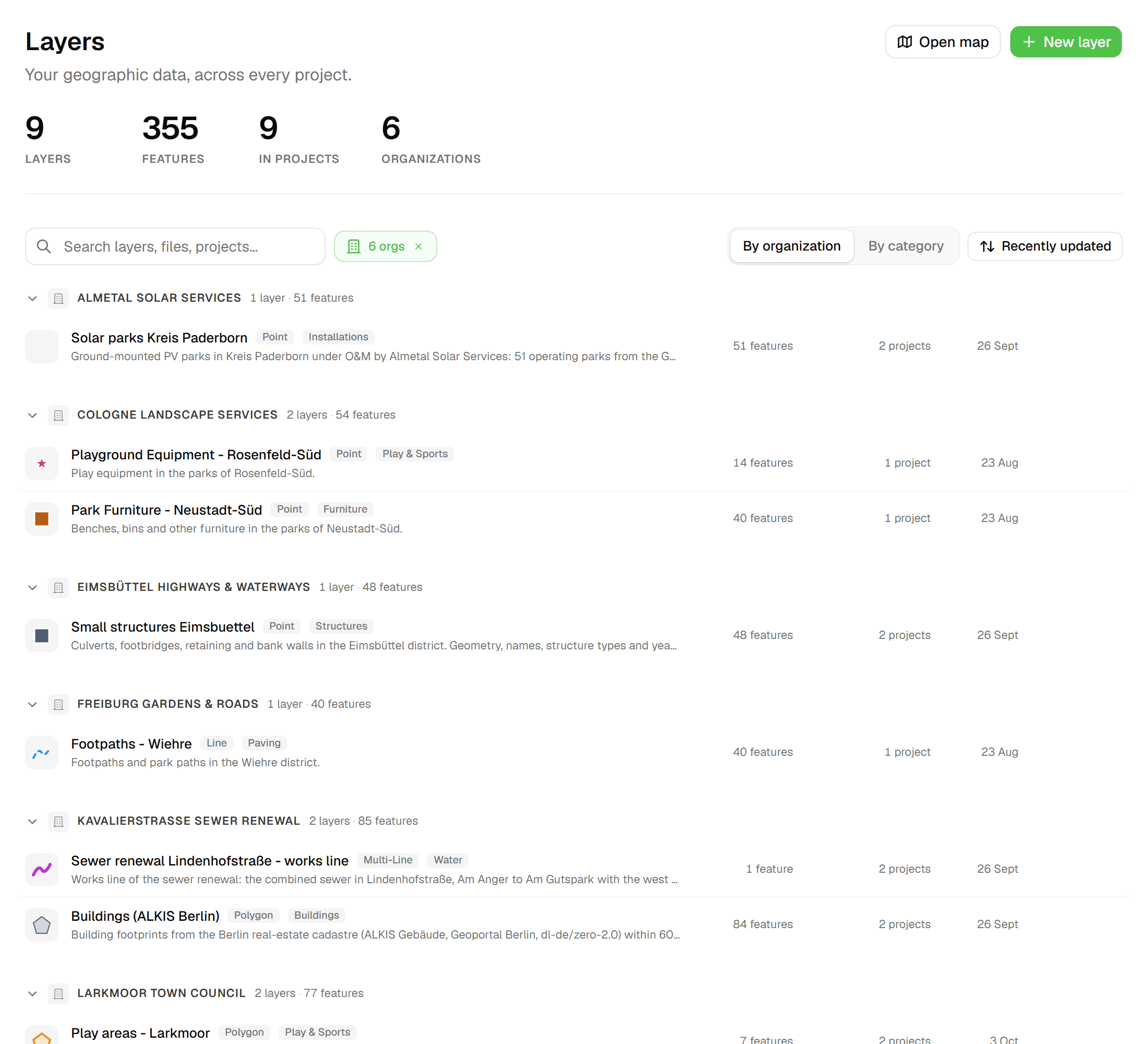
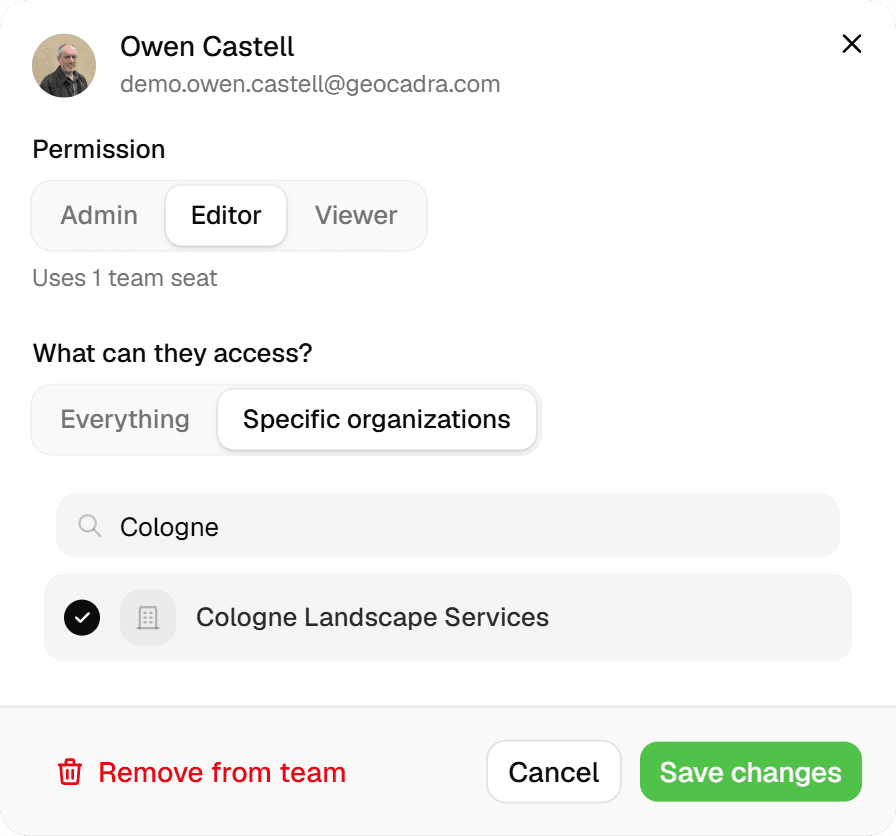
A Geocadra workspace is your team's; inside it, each client is an organization with a name, logo and its own layers and projects. Layers, map and project pages carry an organization filter, so you move from one client's work to another's with a chip rather than a login. Client contacts get Admin, Editor or Viewer access to their organization, or to a single project, and see only that. Forms, project types and external map services (PDOK presets and your own WMS or XYZ services) live at workspace level, so you set them up once.

Key benefits
- Own layers, projects and logo per client
- Filter layers, map and projects by organization
- Client contacts see only their own organization
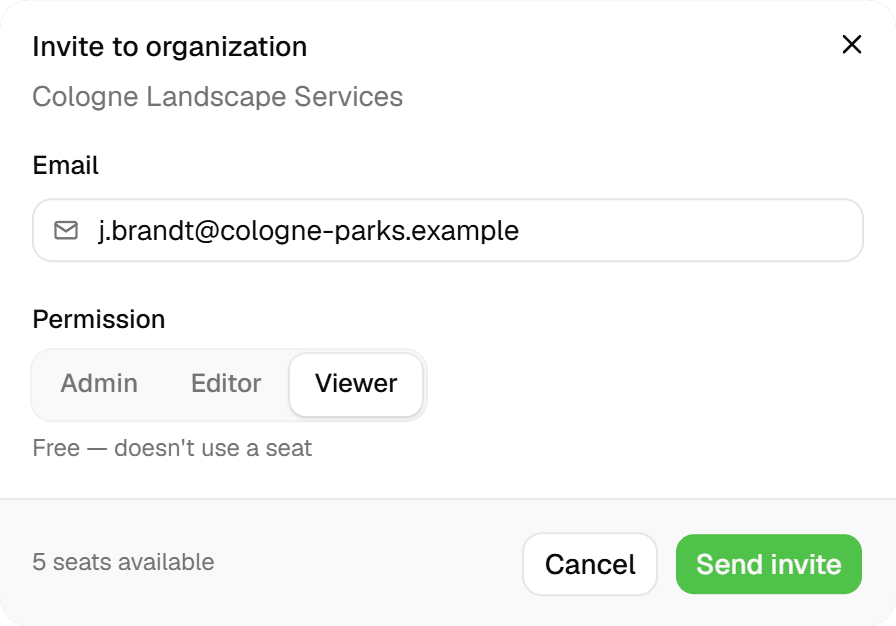
- Client members don't use a seat unless they're Admin
- Forms and map services set up once, used everywhere
- One login for every team you belong to
How It Works
- 01
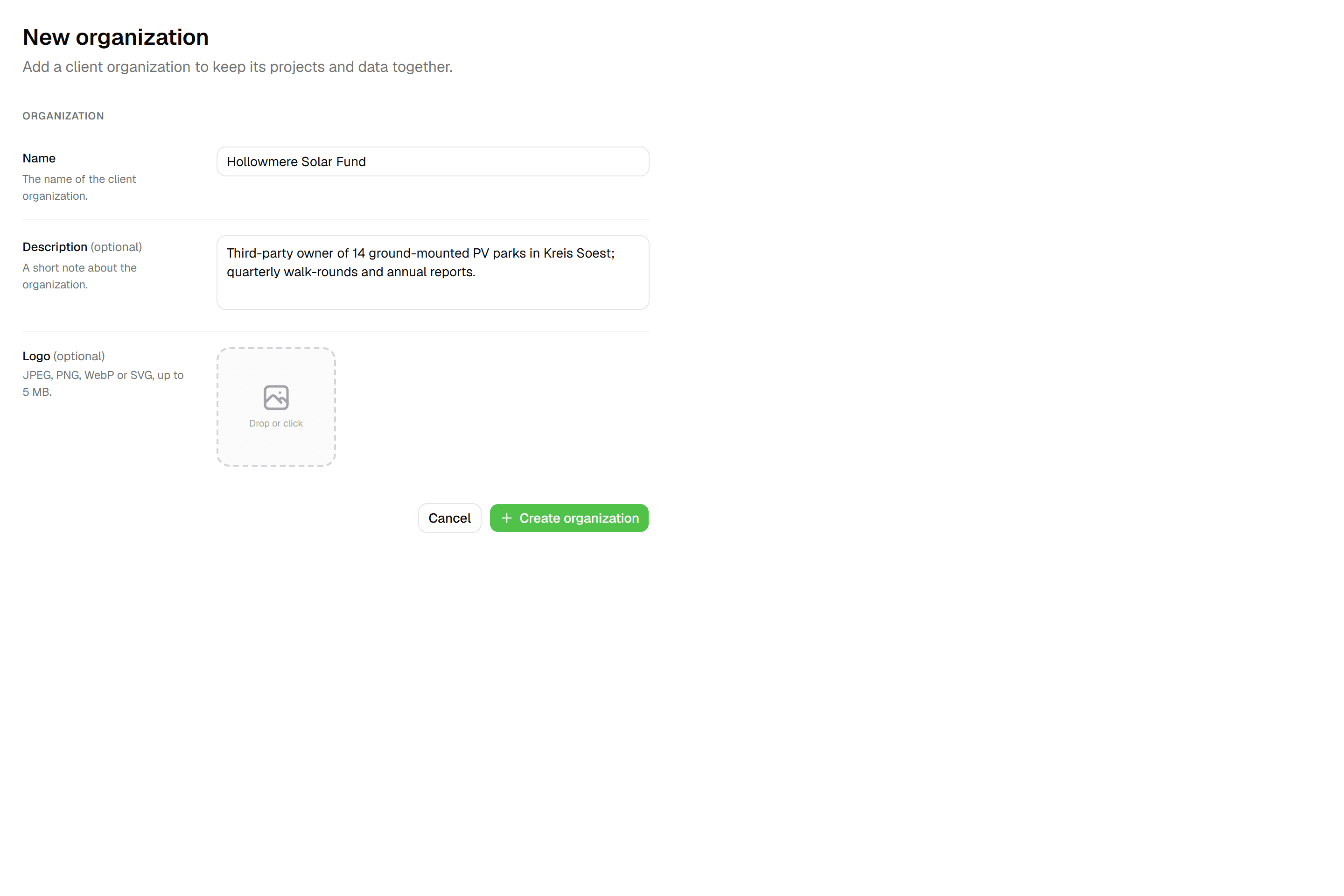
Create an organization per client
In Settings → Organizations, add a client with a name and logo. Each organization holds its own layers and projects and has its own feature allowance (5,000 on Starter, 25,000 on Pro, 100,000 on Business). Plans include 3 organizations on Starter, 10 on Pro and unlimited on Business and Enterprise; the built-in 'One-time projects' organization for ad-hoc jobs doesn't count.
- 02
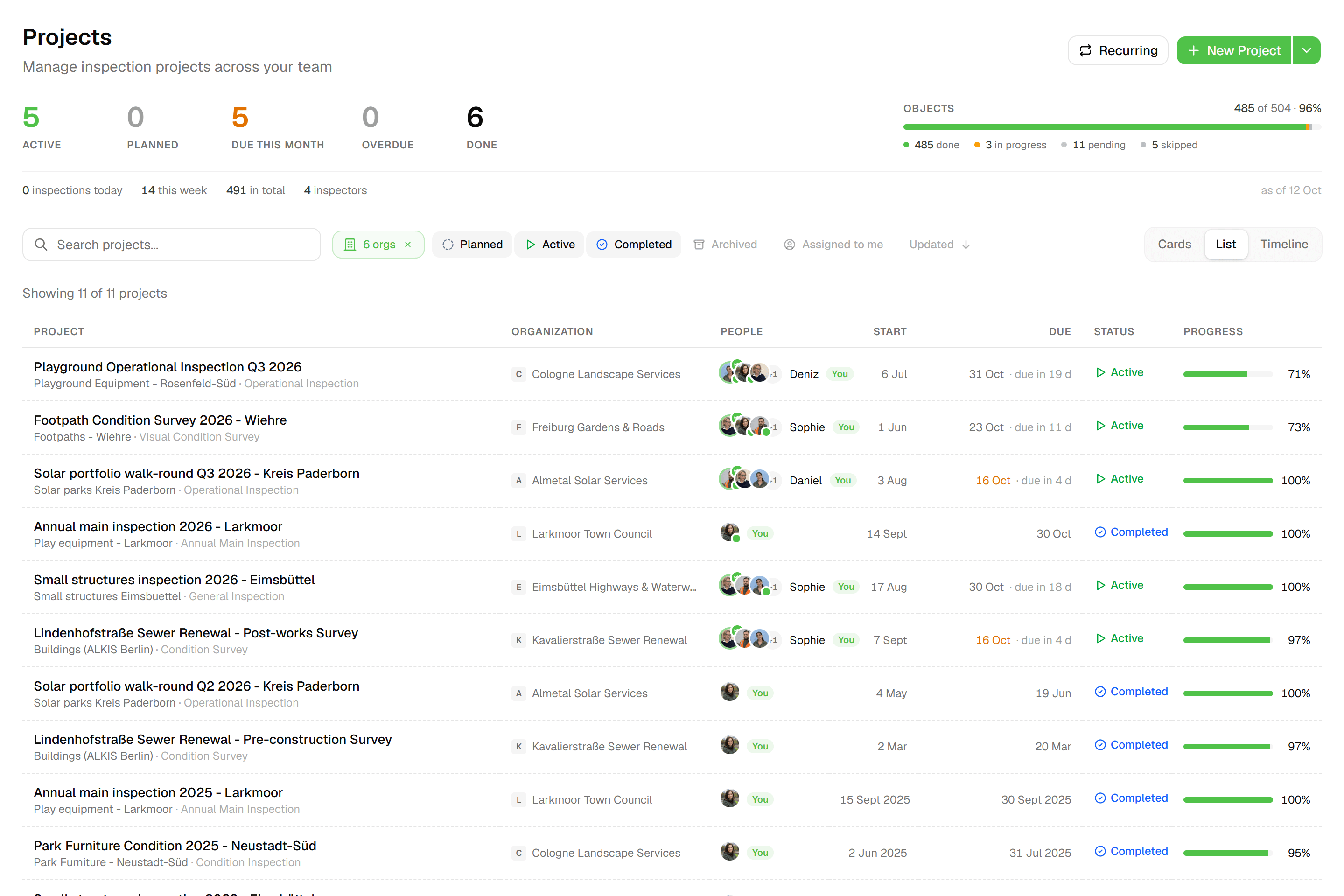
Switch and filter
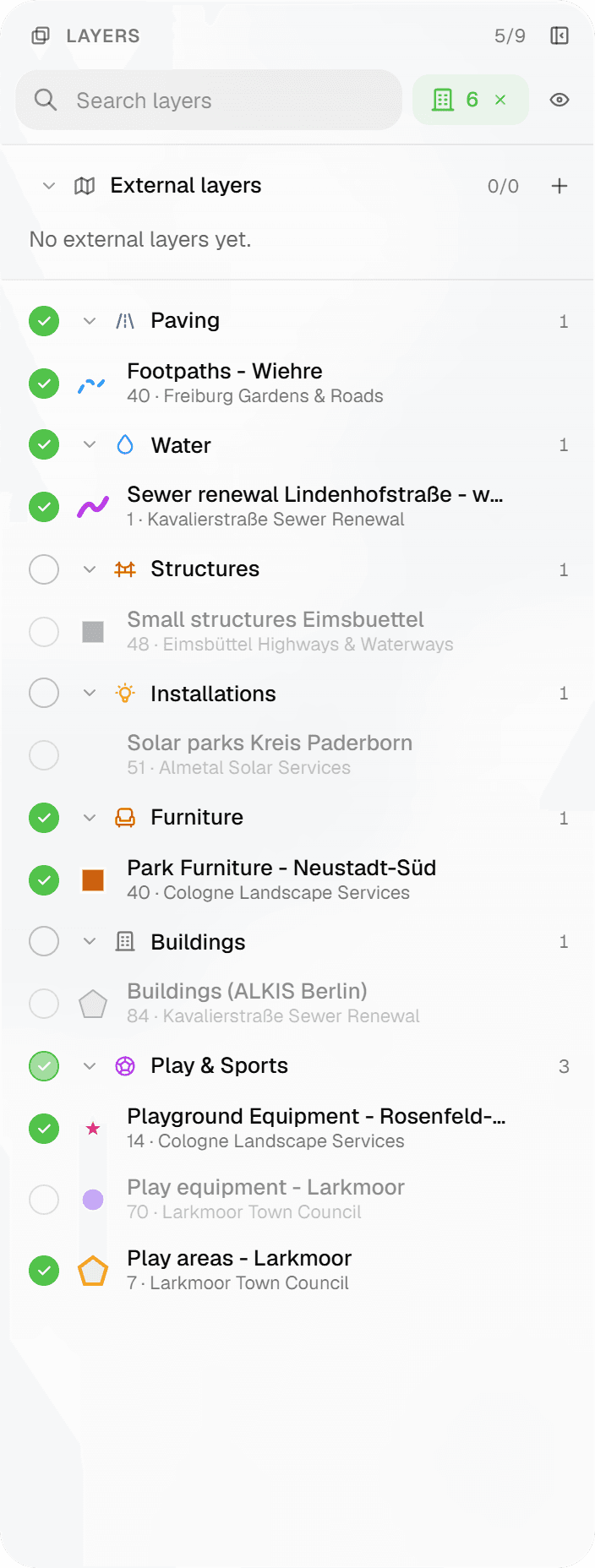
The workspace dashboard shows Organizations, Active Projects, Team Members and Inspections over the last 30 days, with the organization list and recent projects underneath. Layers, the workspace-wide map and the projects page carry an organization filter chip, so the map shows one client's assets or all of them. Project types, forms and external map layers are shared across organizations.
- 03
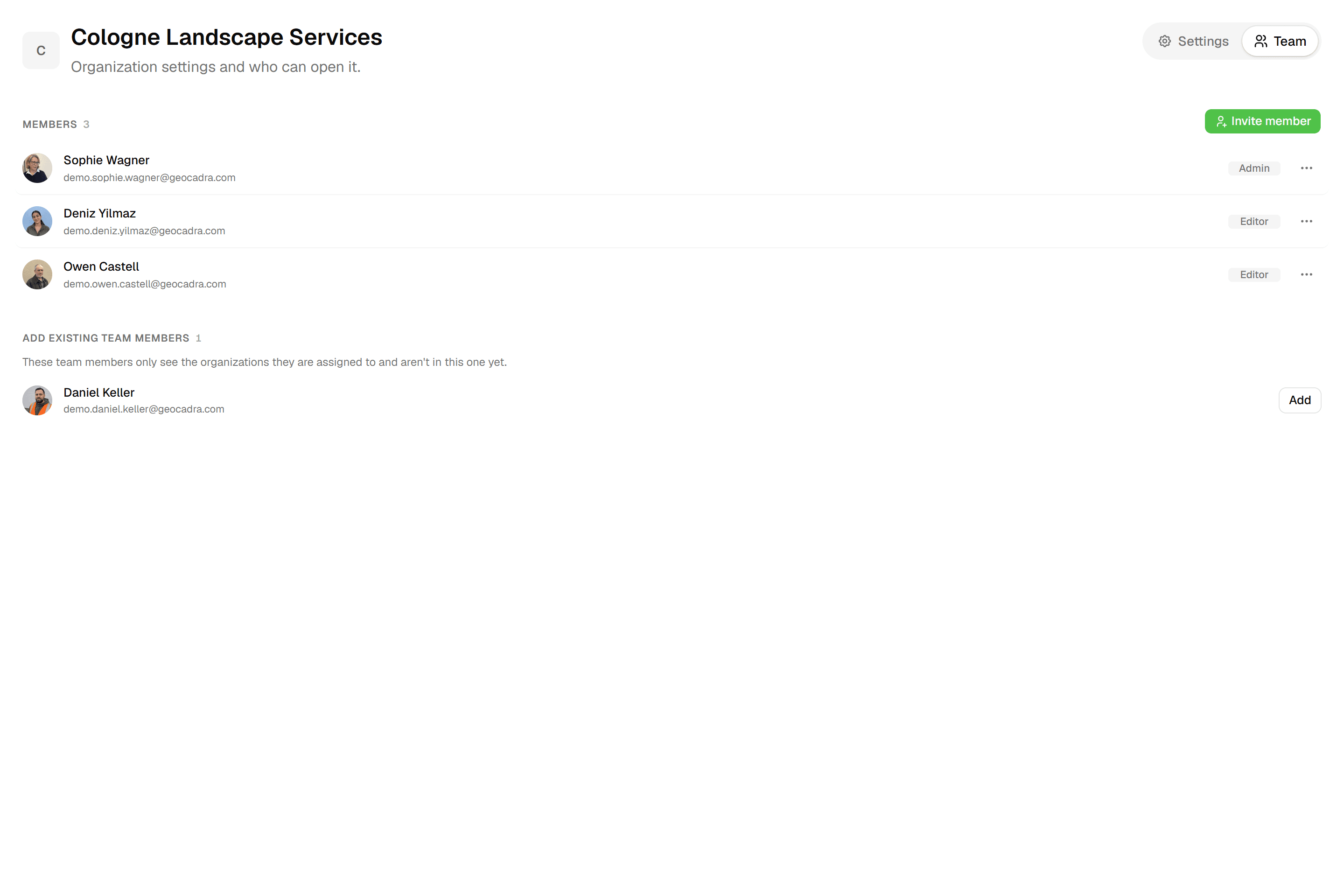
Give clients their own roles
Invite a client contact at organization level or for a single project, as Admin, Editor or Viewer. They see only 'My organizations' or 'My projects'; the rest of the workspace answers 'This section is only available to team members'. Viewers can open the map and download data exports and report PDFs without using one of your seats.

Common Use Cases
- 01
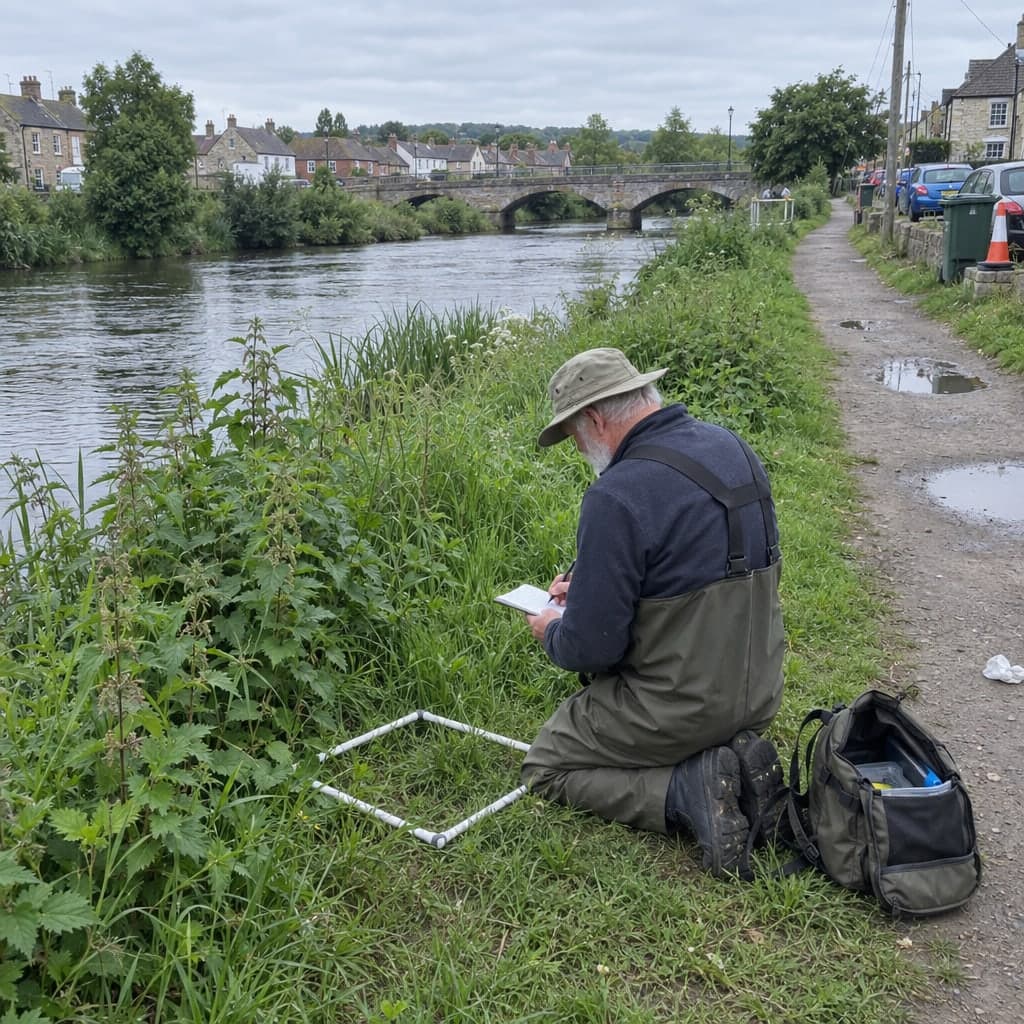
Tree consultants for several municipalities
Each municipality is an organization with its own tree layers and inspection projects. One workspace-level form library serves all of them, so results stay comparable, and each council's contact opens only their own organization.
- 02
Maintenance contractors with several operators
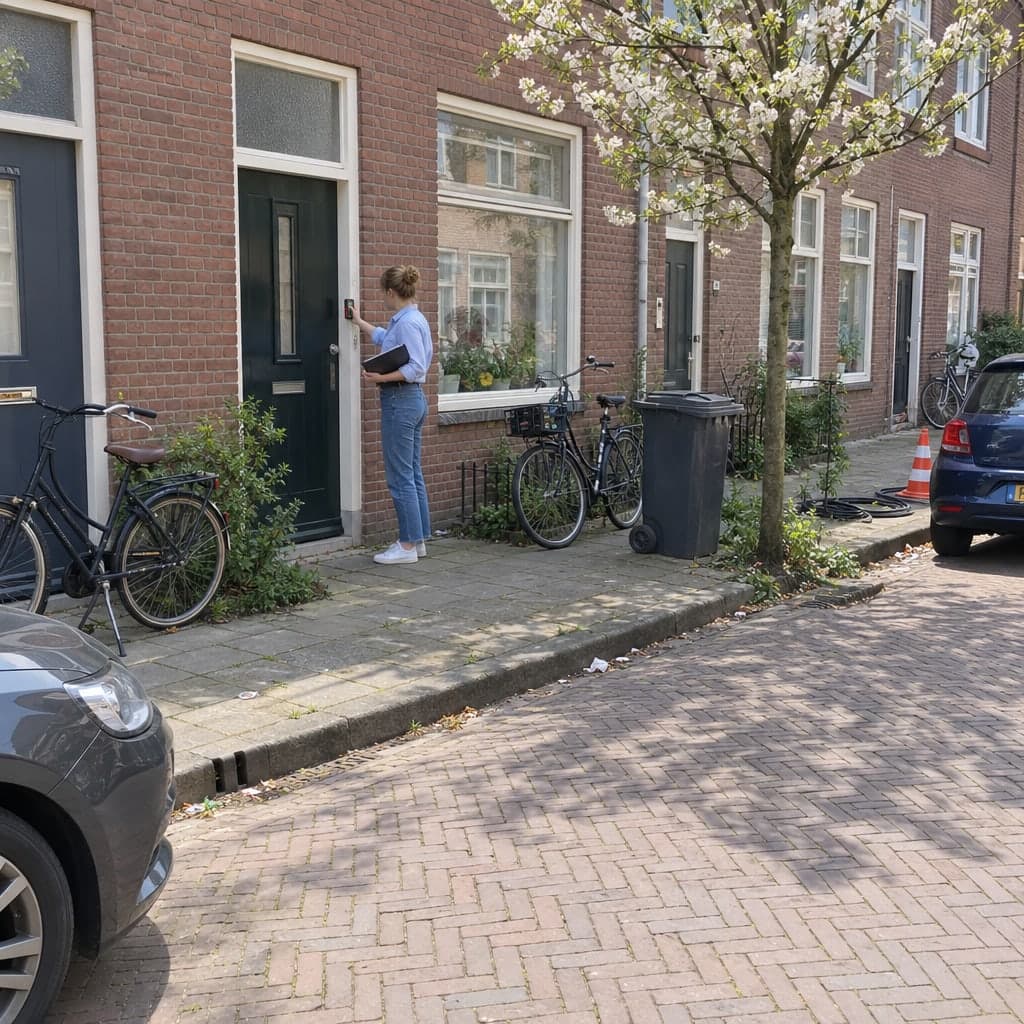
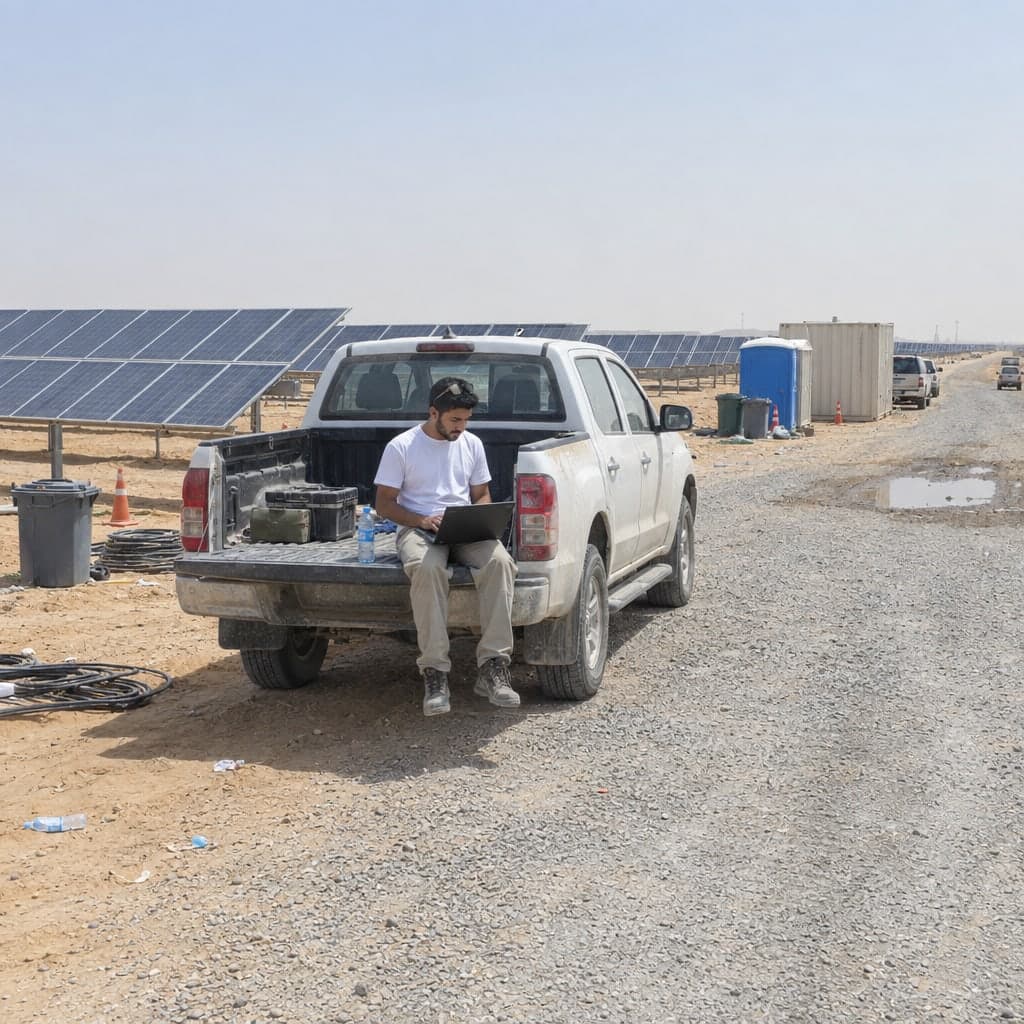
A network operator or housing corporation gets its own organization, its own projects per round and its own viewers. Your crew filters the map to the client they're working for today.
- 03
A client project manager who wants to follow along
Invite them as a Viewer on the project. They watch progress on the project overview and download the finished report PDF and data exports themselves, so nobody has to email screenshots. A client Viewer doesn't use a seat.
- 04
One-off jobs without a client record
Ad-hoc work goes into the workspace's built-in 'One-time projects' organization, so it doesn't clutter a client's organization or count against your organization limit.
Frequently Asked Questions
How many clients can I set up?
Starter includes 3 organizations, Pro 10, Business and Enterprise unlimited; the 'One-time projects' organization is excluded from the count. Each organization also has a feature allowance: 5,000 on Starter, 25,000 on Pro, 100,000 on Business and unlimited on Enterprise.
Do client contacts use a seat?
Not as Viewers. A client contact invited as Viewer to an organization or a project takes a free viewer slot, not a seat; members with the 'Client' member type are free as Editors too and only use a seat as Admin. Free viewer slots are limited by plan to 2 per purchased seat on Starter, 4 on Pro and 10 on Business (unlimited on Enterprise); an invitation that would exceed the allowance is blocked before it's sent.
What does a client contact see?
Someone invited at organization or project level sees only 'My organizations' or 'My projects'. Other sections return 'This section is only available to team members', and projects they're not on return a 404. Team members with scope 'All resources' see every organization; 'Assigned only' restricts them to what they've been added to.
Are forms separate per client?
Forms belong to project types, which are set up at workspace level and shared across all organizations. Each project layer binds the form it uses, so one client can get a different sheet than another without duplicating your whole form library.
Can I be a member of more than one workspace?
Yes. One email is one account; a team switcher moves you between workspaces, one of which is your home workspace. 'Your work' lists your projects across all teams, and the Teams page shows each team and organization you belong to with your role.
Explore More Features
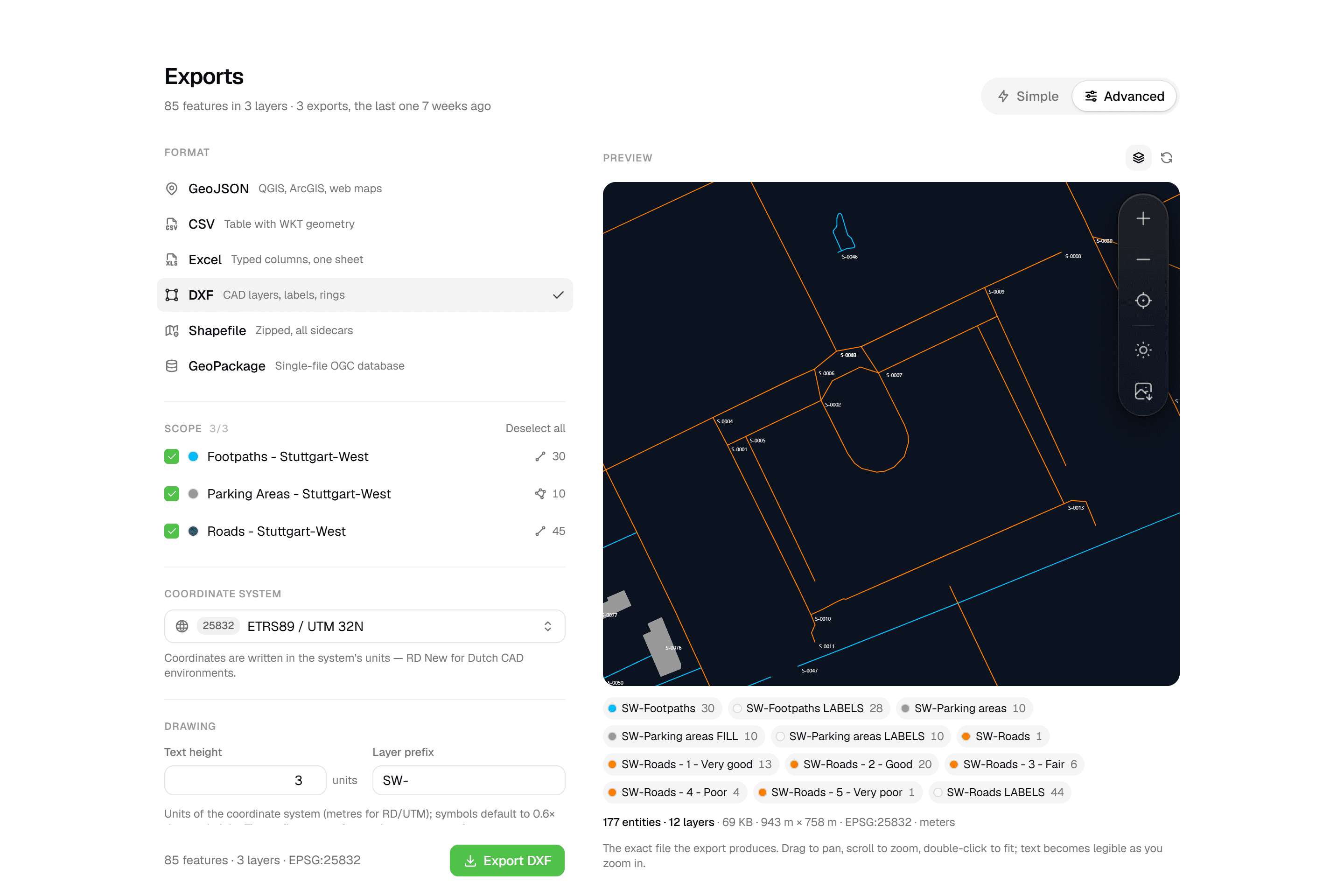 CAD-ready DXF, plus five data formatsLayered DXF with labels, rings and fills, previewed in the browser before you download. GeoJSON, CSV, Excel, Shapefile and GeoPackage on every plan.
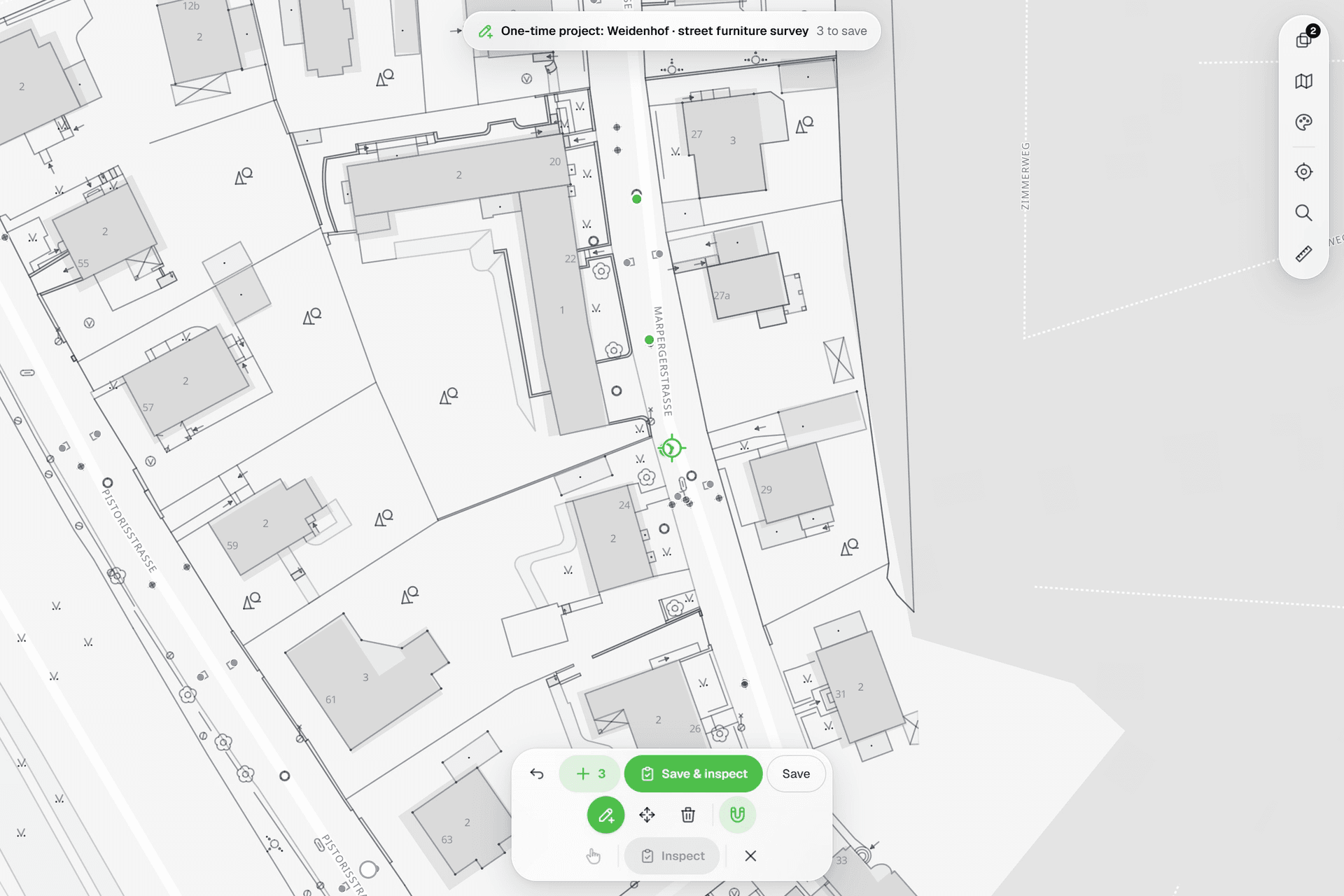 See everything on the mapPoints, lines and polygons over street maps, aerials, BGT and any CAD drawing you upload as reference. Place and correct geometry with a crosshair that snaps to the drawing.
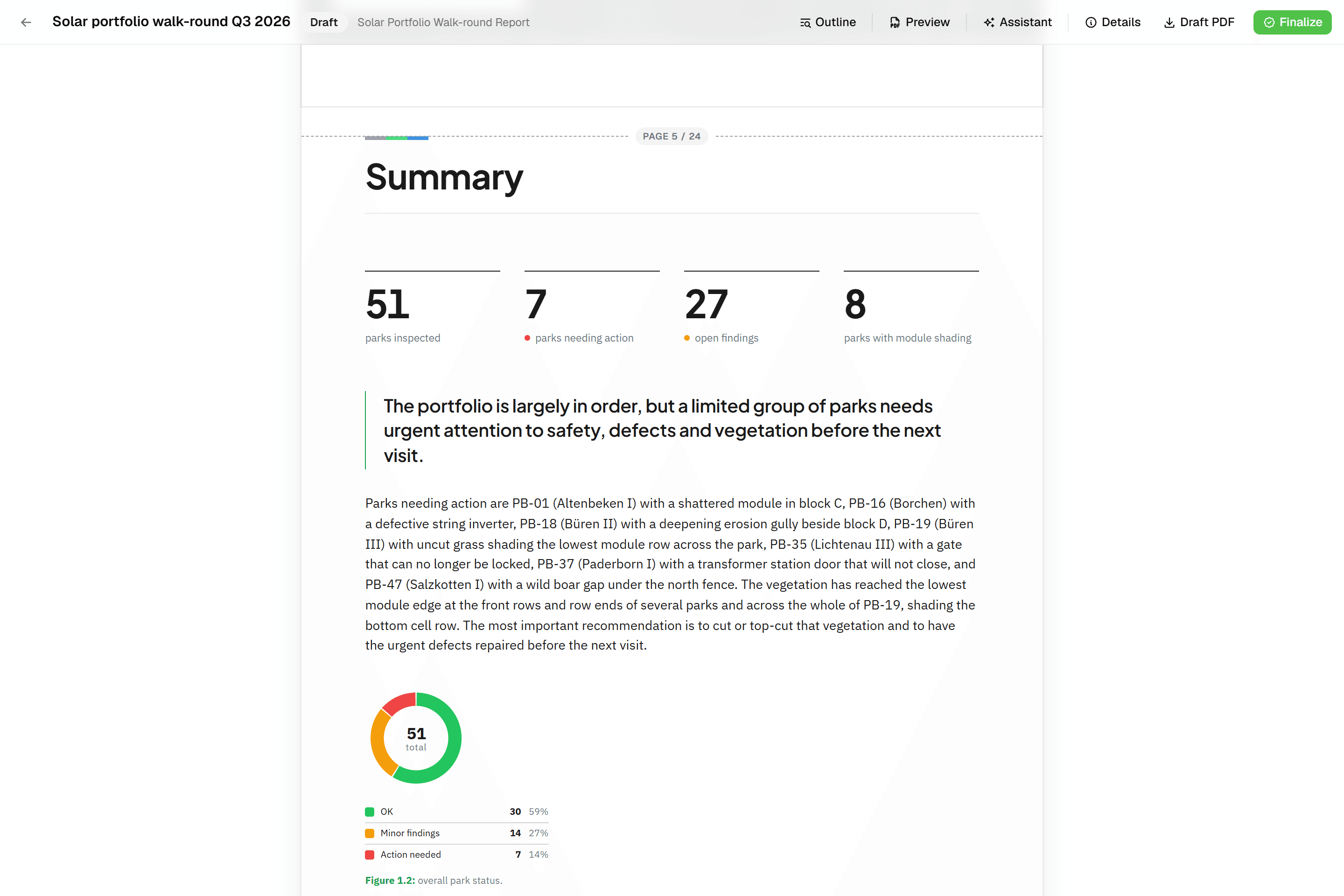 Reports that assemble themselvesBlock-based reports with live data tables, photo appendices, map figures and an AI assistant. Live PDF preview; finalize to an immutable PDF, revise as rev. B.
Try it on your own data
Set up a project and see your own data on the map. Free for 14 days, no credit card.
No credit card requiredFree trial included