






Roles, seats and client access
Owner, Admin, Editor and Viewer on the workspace; Admin, Editor and Viewer on any organization or single project, with free viewer access within your plan.
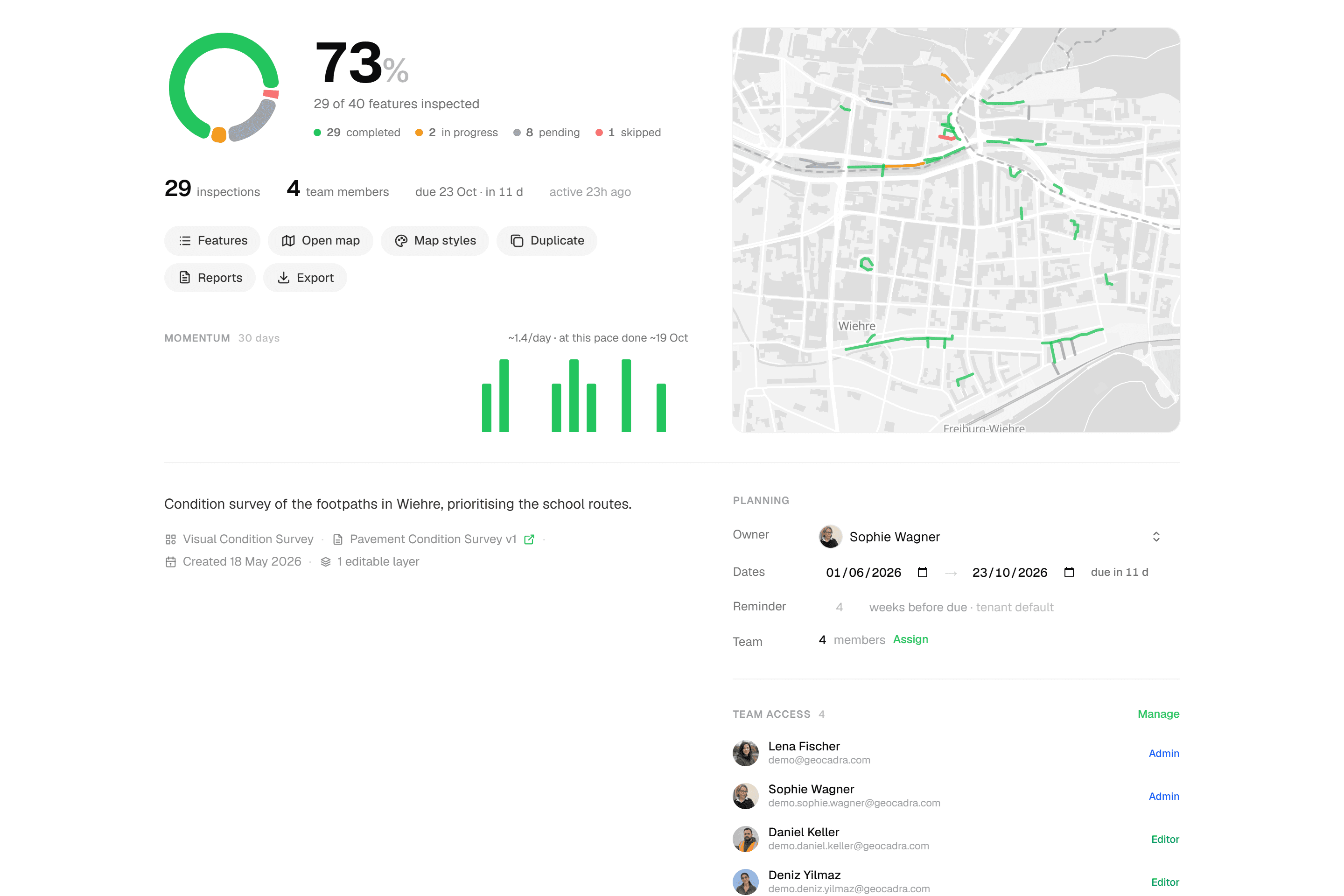
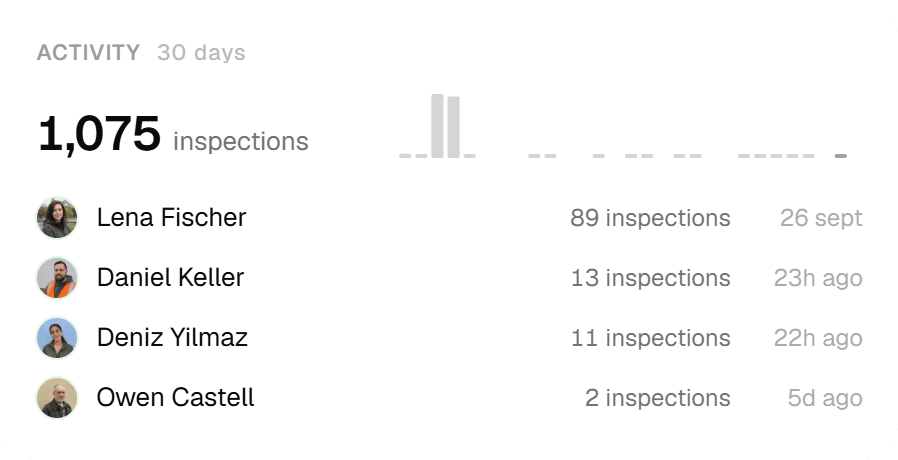
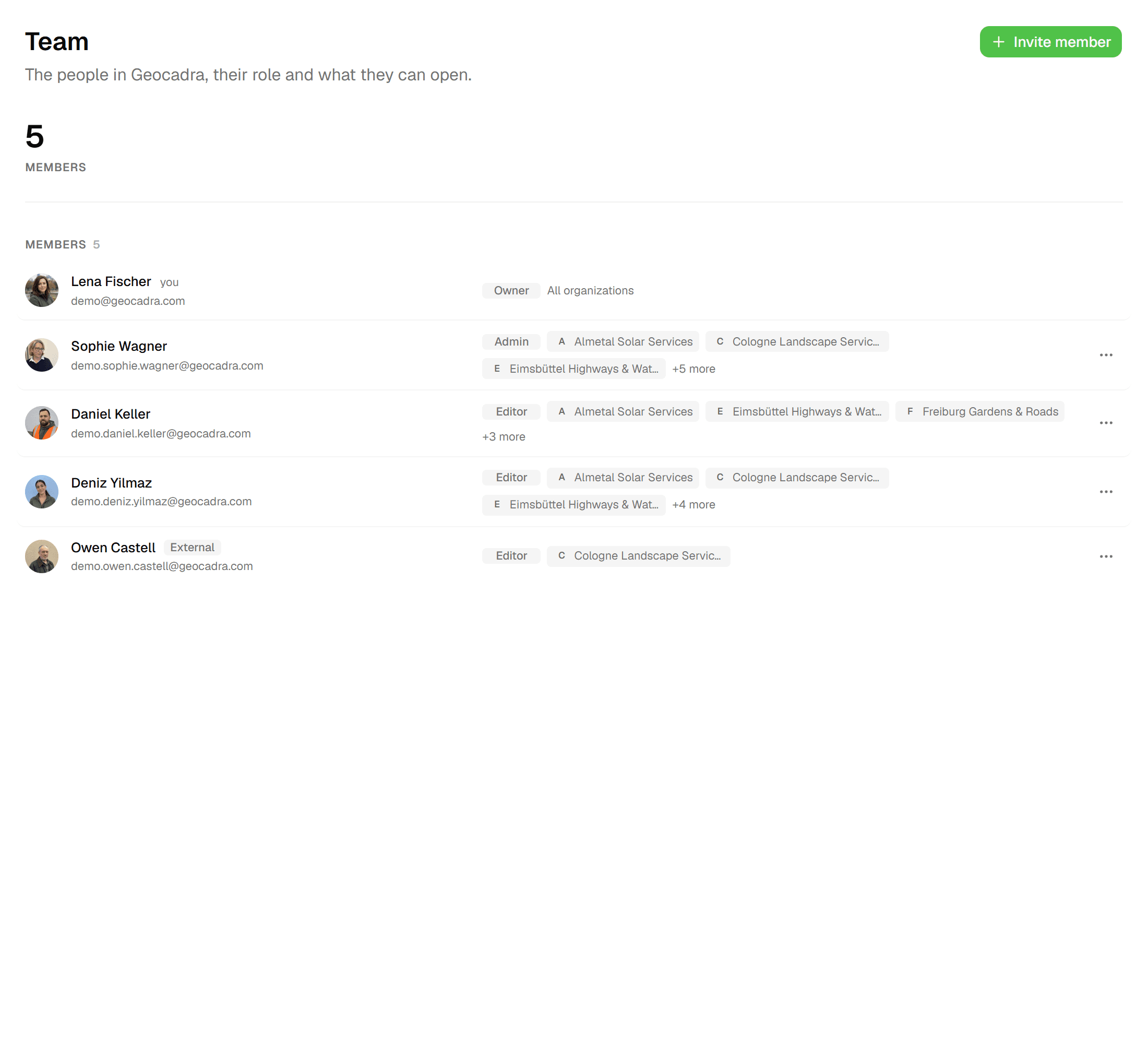
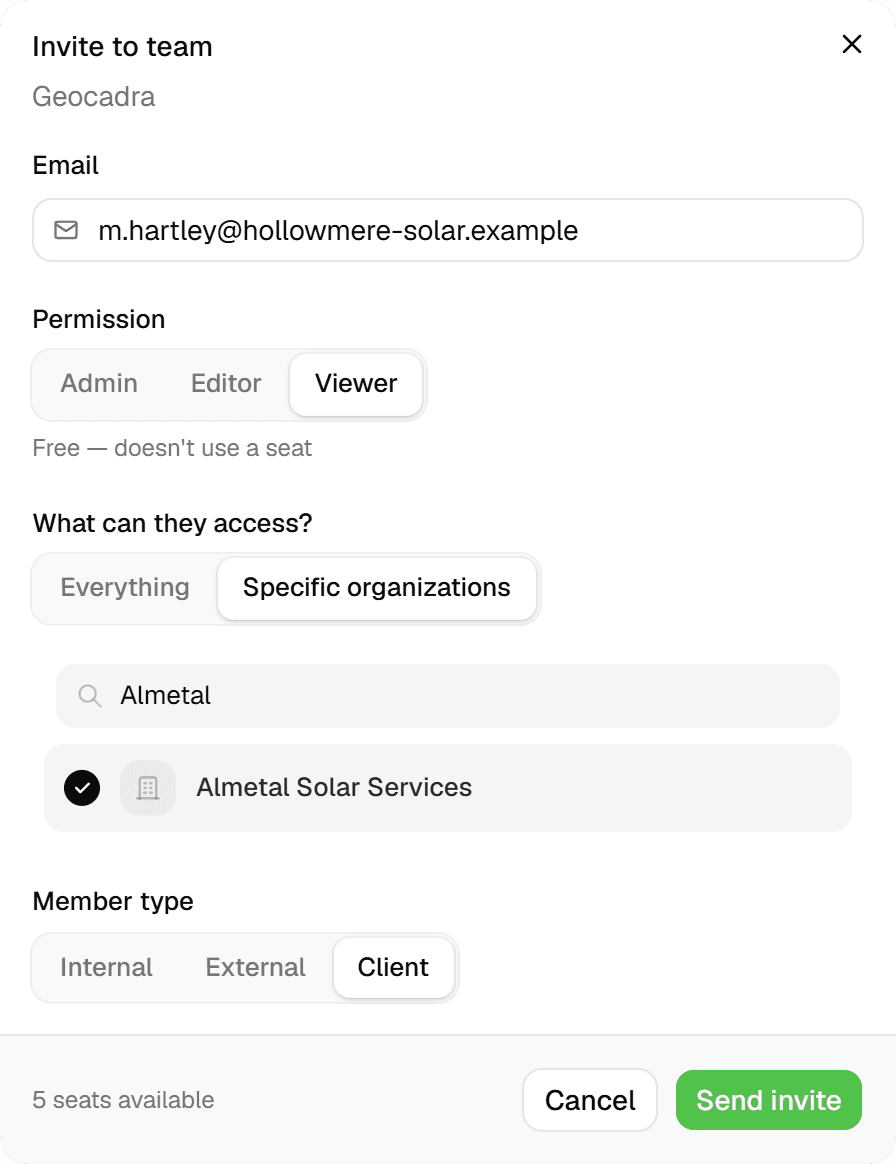
Geocadra's permissions separate three questions: what someone may do (Owner, Admin, Editor or Viewer), what they may see ('All resources' or 'Assigned only') and how they relate to your company (Internal, External or Client), which decides whether they use a seat. Invite people by email at workspace, organization or project level, or copy an invitation's link from Team settings and send it yourself. Every inspection records who submitted it and when, so the history of who changed what comes with the data.
The problem
Everyone gets the same login, or nobody gets one
Field tools tend to offer one kind of user: a paid, all-access account. So the freelance surveyor you bring in for two weeks sees every client, the client's project manager gets a PDF by email instead of a login, and nobody can say afterwards who changed which value. The alternative, sharing one login, is worse.
The solution
Permissions that match how consultancies work
Owners manage billing and ownership; Admins run workspace settings and members; Editors inspect, edit, import and set up forms; Viewers read and export. Each member also has a scope ('All resources' or 'Assigned only') and a relationship: Internal members use a seat, External members only as Editor or Admin, Client members only as Admin. The same Admin / Editor / Viewer vocabulary applies to organizations and projects, so a client contact or subcontractor can be added to exactly one of them.

Key benefits
- Owner, Admin, Editor, Viewer on the workspace; Admin, Editor, Viewer per organization or project
- Free viewers: 2, 4 or 10 per seat by plan
- 'Assigned only' scope for externals and clients
- Invite by email or copy link; expires after 7 days
- Every submission records who and when
- One account across all your teams
Common Use Cases
- 01
Your own crew
Internal members use a seat each. Editors inspect, edit and import data and can manage forms and project types; Admins add and remove members and run workspace settings; the Owner handles billing and can transfer ownership.
- 02
A subcontractor for one project
Add them to just that project from its Settings → Team as Editor ('Can inspect and edit'), by email or from your team list; they see nothing else. For a whole client, invite them at workspace level as External with scope 'Assigned only' and pick the organization. External members use a seat only as Editor or Admin; as a Viewer they're free.
- 03
A client's project manager
Add the client contact as a Viewer on their organization or project. They follow progress, download raw-data exports and the final report PDF, and don't use a seat; only a client Admin does.
- 04
Consultants who work in several teams
One email, one account. A team switcher moves between workspaces, 'Your work' lists projects across all of them, and the Teams page shows your role in each.
Frequently Asked Questions
What can each role do?
Owner only: delete the workspace, manage billing, transfer ownership. Owner and Admin: workspace settings, remove members. Owner, Admin and Editor: invite members, manage forms and project types, create organizations. On an organization or project, settings and members need Admin, writing or importing data needs Editor, and reading and exporting (report PDFs included) is open to everyone, Viewers included.
Who uses a seat?
Internal members always use a seat. External members use one only as Editor or Admin; Client members only as Admin. Before you send an invite, the dialog states 'Uses 1 team seat' or marks it free. Free viewers are capped at 2 per purchased seat on Starter, 4 on Pro and 10 on Business, unlimited on Enterprise; invites beyond that are blocked with 'No available seats…' or 'No available viewer slots…'.
How do invitations work?
Invitations go out by email with a unique link, or you copy the link from Team settings and send it yourself. They expire after 7 days. The invitee accepts from their personal space ('You've been invited to this team') and signs in with email and password or with Google.
Can I limit someone to certain projects?
Yes. Set their scope to 'Assigned only', or invite them at project level only. In a project's Settings → Team, admins add team members as Admin ('Full project control'), Editor ('Can inspect and edit') or Viewer ('View-only access'), and the page shows who already has access through the workspace or organization.
Can I see who changed what?
Inspections are append-only: every submission, whether from the field, a batch or a correction in the grid, is a new record with who and when. The feature's 'Form Submissions (N)' timeline lists them, an attribute-level history view shows how each value changed, and grid corrections carry a 'Corrected' badge.
Can one person be in several workspaces?
Yes. One email is one account. Multi-team users get a team switcher with one home workspace, 'Your work' shows projects across all teams with status filters and search, and the Teams page lists each team and organization with your role.
Explore More Features
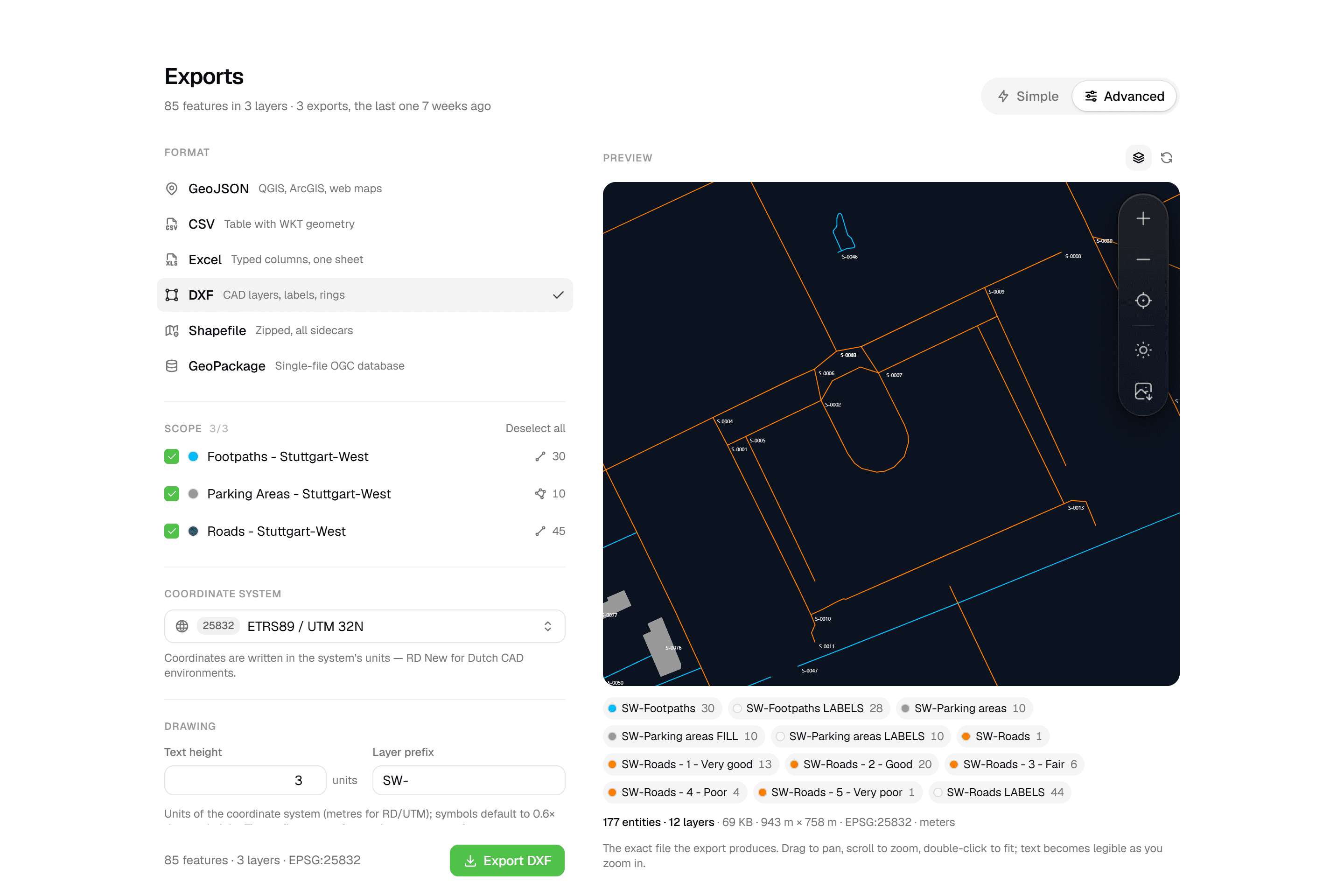 CAD-ready DXF, plus five data formatsLayered DXF with labels, rings and fills, previewed in the browser before you download. GeoJSON, CSV, Excel, Shapefile and GeoPackage on every plan.
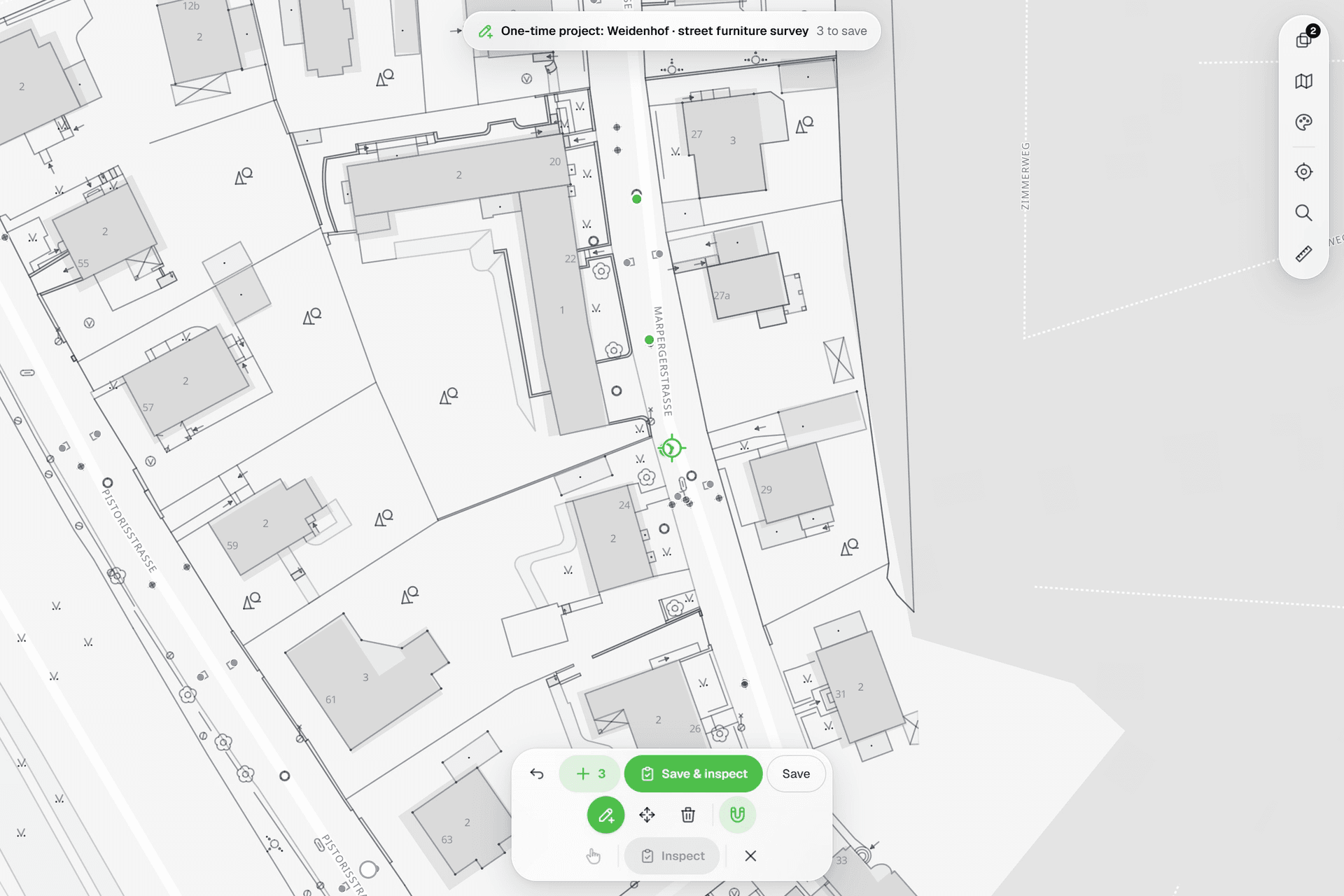 See everything on the mapPoints, lines and polygons over street maps, aerials, BGT and any CAD drawing you upload as reference. Place and correct geometry with a crosshair that snaps to the drawing.
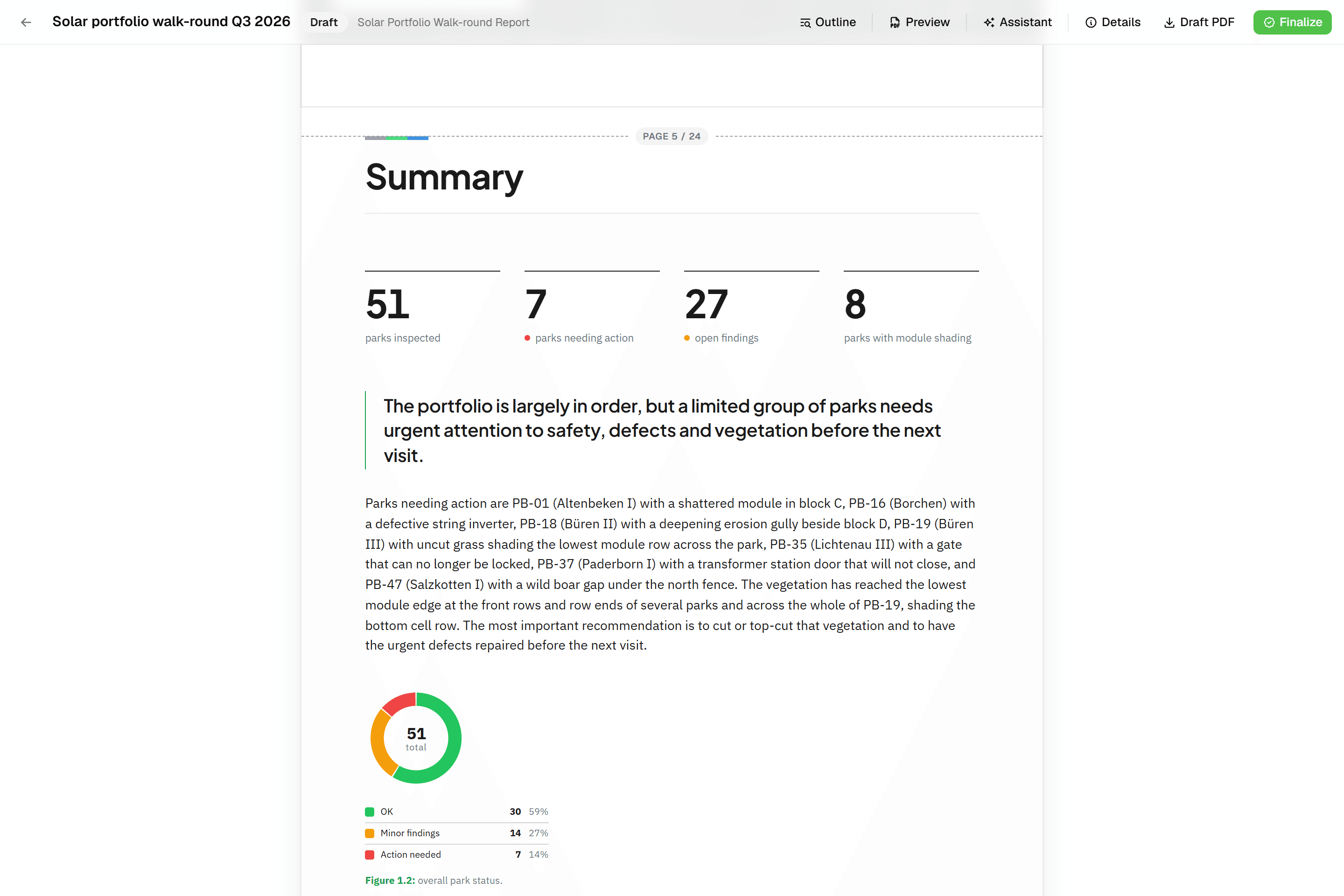 Reports that assemble themselvesBlock-based reports with live data tables, photo appendices, map figures and an AI assistant. Live PDF preview; finalize to an immutable PDF, revise as rev. B.
Try it on your own data
Set up a project and see your own data on the map. Free for 14 days, no credit card.
No credit card requiredFree trial included